
How to Test Controller Vibration on PC — Test browser rumble actuators honestly—including when missing web vibration does not mean dead motors. Tuned for desktop browser checks. Open the matching Gamepad Tester panel, take two quiet samples, and write down the worst reading before you decide to clean, repair, or keep playing.
Hardware labs write down readings. Treat this page the same way: capture idle magnitude, button indexes, trigger travel, and connection type while you work through controller vibration test.
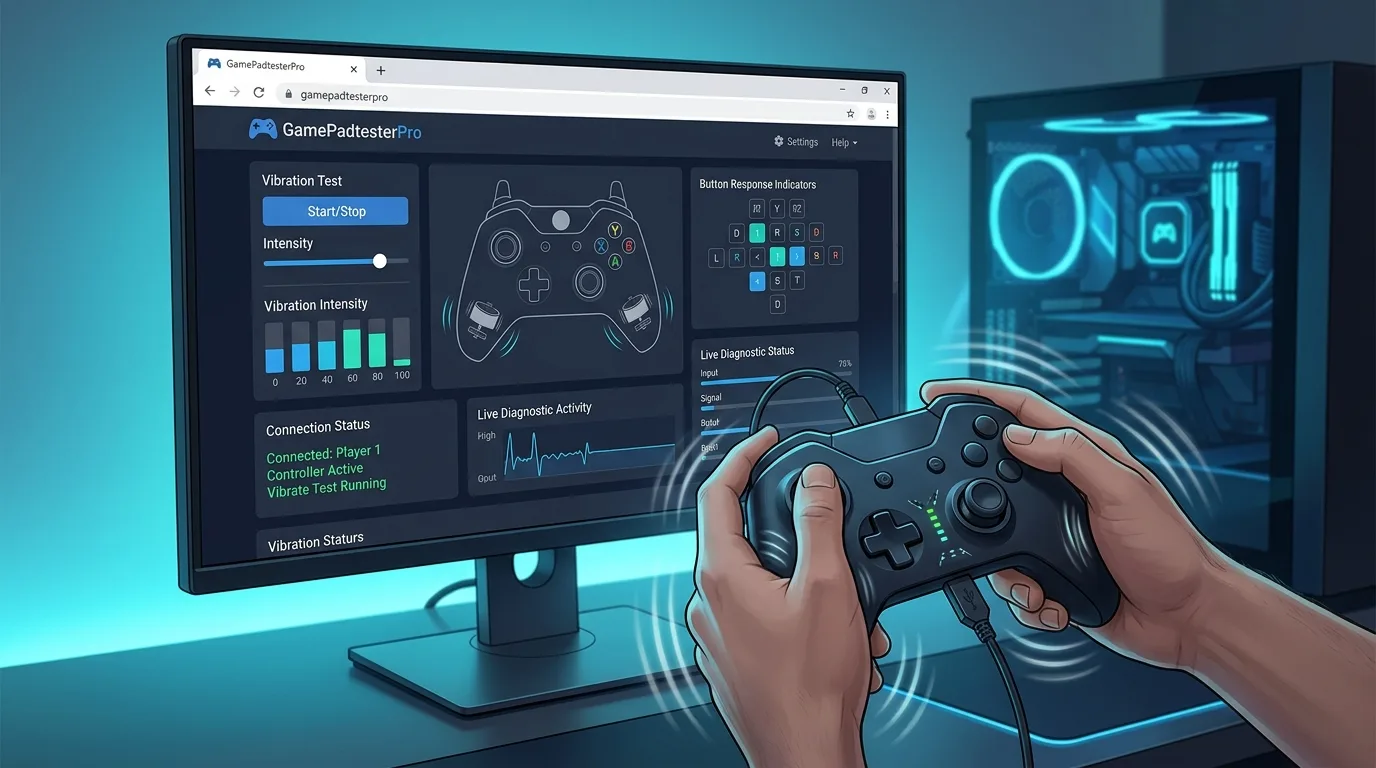
Diagram of the browser tester view for this workflow.
What checklist themes matter here?
You will set up detection, run the focused checks for this topic, interpret the live panels, and decide what to do next. Rumble tests only work when the browser exposes a vibration actuator. Missing web rumble does not always mean dead motors.
- How to wake browser detection reliably
- Which Gamepad Tester panels matter for this intent
- How to avoid false positives
- What to try if results look unhealthy
What should you do before the first sample?
Use a desktop browser with Gamepad API support such as Chrome, Edge, or Firefox. Connect with USB for the cleanest baseline, or finish Bluetooth pairing in the OS first if you must test wireless. Close games, Discord overlays, and exclusive capture tools that can lock the device. Open Gamepad Tester or a focused tool below, then press any button so the browser wakes detection.
Recommended tools for this topic:
How do you complete the procedure?
- Connect the controller with USB or finish OS Bluetooth pairing.
- Open the matching Gamepad Tester tool from the list in this article.
- Press any button to make the browser list the device.
- Confirm name, mapping, button count, and axis count on the status card.
- Run the focused checks described below for this topic.
- Retest once over USB if wireless results look unstable.
Keep the tab visible while testing. Some browsers throttle background pages.
What does a clean readout mean?
Look for clean pressed and released states, smooth stick travel, sensible trigger range, and rumble only when the browser exposes an actuator. Missing rumble in the browser is not always broken motors. Take two or three samples a few minutes apart if the first reading surprises you. Consistency across samples matters more than a single scary spike.
Browser testers show what the Gamepad API exposes. A healthy reading is a strong signal, but it does not guarantee every native title will feel identical. On DualSense, Gamepad Tester can also use optional WebHID checks for touch pad drawing, adaptive trigger feel, speaker beep, and a simple PDF activity report when Chrome or Edge grants access over USB. Pair this page with Stick Drift Test, Vibration Test, and when you need permanent stick center or range writes, PS4 / PS5 Calibration.
What panels belong in a modern gamepad test?
The homepage Gamepad Tester and brand controller pages (PS5, PS4, Xbox, PC, USB, Bluetooth, arcade, flight) share one live dashboard. You get up to four controller slots, live sticks with circularity view, buttons, triggers, vibration pulses, optional DualSense touch pad and adaptive trigger checks, speaker or beep tests when supported, and a downloadable PDF summary after you exercise the pad.
- Four Gamepad API slots so a second, third, or fourth pad can connect without leaving the page.
- Stick reach / circularity visuals plus idle drift and deadzone explorers on focused tools.
- USB WebHID stick calibration for official DualShock 4 and DualSense pads when you need to write center or range after a module swap.
- Honest limits: browser rumble is not every native haptic, and Gamepad API alone cannot rewrite firmware maps.
What quick traps waste testing time?
- Cleaning with liquids that soak stick modules.
- Testing on a vibrating desk that moves idle samples.
- Stopping after one scary spike instead of three quiet samples.
Do not skip the reconnect step. Many flaky reports clear after a fresh plug in.
Which desktop browser practices keep samples honest?
On Windows, prefer a direct USB cable for first checks. If wireless is required, confirm the OS sees the pad before blaming the tester. Update controller firmware with official maker tools when available. After any repair, retest buttons, sticks, triggers, and rumble in that order. If the device never appears, start at Controller Detection before you open deeper panels.
Document your browser, connection type, and controller model when asking for help. That detail saves time. If results conflict between browsers, trust the clearer desktop Chromium session over a mobile browser.
What decision framework fits this topic?
If detection fails entirely, fix connection first. If detection works but one control family fails, focus repair there instead of replacing the whole pad immediately. When in doubt, capture a short note with date, browser, connection type, and the worst idle or button value you saw.
Aim assist and high deadzones hide symptoms in competitive games. Confirm with a quiet browser idle test instead.
Where do bare gamepad grids fall short?
A bare button grid helps for five seconds. Decision content plus links into Stick Drift, Detection, and Vibration is what users keep.
What are the most common questions?
Is an online tester accurate enough?
It is accurate for what the browser exposes, which is enough for most input and drift checks.
Do I need drivers?
Usually the OS already provides what the browser needs. Official firmware tools are separate.
Will this work on phones?
Support varies. Desktop browsers are more reliable.
How is this different from a basic gamepad tester?
You get the live tester plus a decision checklist, related tool links, and guidance for used buys and repairs.
Related Gamepad Tester guides
- Controller Vibration Not Working: How to Test It
- How to Test PS5 Controller Vibration
- PS5 Controller Vibration Not Working: How to Test It
How do you continue testing from here?
Use the linked testers above, then compare with the homepage Gamepad Tester (four slots + DualSense extras), Stick Drift Test, Deadzone Test, Vibration Test, and PS4 / PS5 Calibration when you need WebHID stick writes after a hardware swap. Keep notes of idle magnitude, button indexes that fail, and whether USB behaves better than Bluetooth.
Bookmark the tools linked above and reuse them whenever controller vibration test comes up again after travel, repairs, or a used purchase.
Related reading
Vibration on PC has three layers: browser, Steam, and game
A rumble complaint on PC needs layer separation before any fix. The browser layer is what the Vibration Test sees: a basic actuator with weak and strong pulses over USB in Chromium. The Steam layer sits in between on many setups: Steam Input can remap, scale, or disable rumble, so a pad that vibrates in the browser but not in a Steam game usually has a Steam setting problem, not a motor problem. The game layer adds its own rumble intensity, curves, and per-effect triggers. Test in order: browser first for the hardware verdict, then a non-Steam game or a Steam game with Steam Input disabled for the middle layer, then your actual game. A pad that passes the browser test has working motors — whatever fails after that is software, not hardware.
The browser actuator: weak and strong, nothing more
The Gamepad API exposes at most one vibration actuator with two magnitudes: weak and strong. It does not expose trigger motors, HD rumble zones, adaptive resistance, or haptic waveforms. That limit shapes every browser verdict: the Vibration Test can confirm that motors respond, that both magnitudes work, and that pulses start and stop cleanly — and nothing beyond that. A DualSense that produces only a generic buzz in the browser is not broken; its full haptics live in PS5 games and native tools, not in the browser. The same applies to Xbox impulse triggers and Switch HD rumble: the browser sees a single rumble channel where the hardware has several. Judge browser rumble by response, not by richness.
USB versus Bluetooth: the connection decides the rumble
Vibration is the input family most sensitive to connection type. Over USB in Chromium, rumble is at its most reliable: both magnitudes, clean start and stop, repeatable pulses. Over Bluetooth, many pads expose vibration weakly or not at all — the wireless link simply does not carry the actuator channel the same way. That makes the diagnostic rule simple: a pad with no rumble over Bluetooth but clean rumble over USB has a connection limit, not dead motors. Test rumble over USB first, always, and treat Bluetooth rumble results as secondary evidence. A pad with no rumble on either path, after a remapper-free retest, is the one that earns a hardware verdict.
Each brand's PC rumble, honestly
DualSense on PC: basic browser rumble over USB, full haptics only in PS5 games and Sony's tools — a weak browser buzz is normal, not a defect. Xbox controllers: standard rumble plus impulse trigger motors in games, but the browser sees only the basic channel, so trigger-specific effects never appear in a browser test. Generic XInput pads: rumble varies wildly by maker and driver; some expose both magnitudes cleanly, some expose only one, and some need their maker driver installed before any PC rumble appears at all. Switch Pro on PC: rumble support depends heavily on the connection tool and driver in use, and inconsistent PC rumble on a Switch Pro usually means a driver story, not a motor story. Compare like with like: judge each pad against what its PC path can actually show.
The rumble test method that gives a real verdict
Run the same method every time so results compare. USB cable, desktop Chromium, no remappers, no Steam Input override. On the Vibration Test, trigger a weak pulse, then a strong pulse, then a short loop, and note three things: does it respond at all, do weak and strong feel different, and does it stop cleanly when the pulse ends. Repeat over Bluetooth and note the difference honestly. A pad that responds to both magnitudes and stops cleanly passes. A pad that responds to one magnitude only has a partial actuator or driver issue. A pad that keeps buzzing after the pulse ends has a stuck actuator or driver fault. A pad that never responds on USB, after a second cable and port, has a motor, cable, or board fault — and that is the point where repair or replacement enters the conversation.
Frequently asked questions
My game rumbles but the browser test does not — is my pad broken?
No. The browser sees only the basic actuator channel, and remappers, Steam Input, or browser support can block even that. If games rumble, your motors work — the browser path is the limit, not the hardware.
Why is rumble weaker over Bluetooth?
Because the Bluetooth path exposes vibration weakly or not at all on many pads. Retest over USB in Chromium: clean USB rumble with weak Bluetooth rumble is a connection limit, not dead motors.
One side rumbles and the other does not — what does that mean?
Usually a single motor or wiring fault on the silent side, if the result repeats over USB with a second cable. If it appears only in one game, check that game's rumble balance and effect settings first.
Comments
Comments are moderated. New comments stay hidden until an admin approves them.
No public comments yet. Be the first to leave a helpful note.