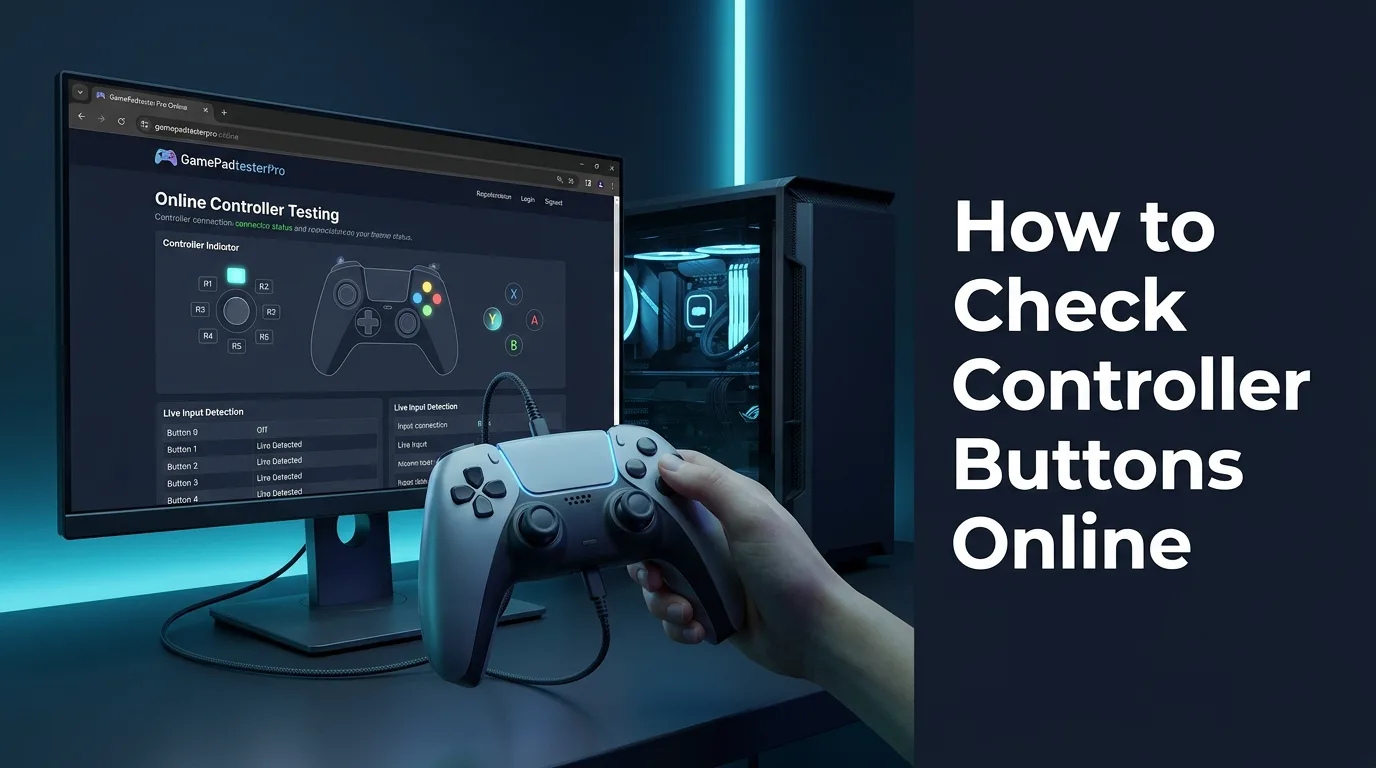
A controller can feel fine in one game yet hide a sticky face button, a double-firing trigger, or a D-pad direction that needs hard pressure. Open the Controller Tester, press each control once, and watch it light up, stay lit while you hold it, and switch off cleanly when you release it. You do not need to install software or open the shell to get a clear answer.
What should you confirm in this walkthrough?
Confirm detection first, then one control at a time, that the on-screen button matches the physical button, and that it releases cleanly. Work through face buttons, the D-pad, bumpers, triggers, stick clicks, Start, Select, Home, and small menu buttons. Note any button that is late, flickers, sticks, or fires twice, and retest those buttons before you judge them.
What setup keeps results honest?
Prefer a wired connection first, close other tabs and games that might grab the controller, and test on a flat surface with dry hands. Charge a wireless pad first, and test close to its receiver. A failure that appears twice under stable conditions is worth trusting, while a one-off glitch is worth retesting.
What is the exact hands-on sequence?
Open Controller Detection first, confirm the controller appears, and press a button to wake detection if needed, then open Controller Tester. Tap each button, hold it for two seconds, and release it. Test D-pad directions, bumpers, triggers through their full travel, then stick clicks and small menu buttons. Repeat any suspect button three times.
How should you interpret the numbers?
Simple buttons are on or off. A healthy button switches on promptly, stays on while held, and switches off on release. Triggers should move smoothly from zero to full without jumping or dropping to zero halfway. Judge the pattern across several presses, not a single reading.
Which tester features can you open in one session?
In one session, start with Controller Detection, then use Controller Tester for the main button pass. If a stick feels off, open Stick Drift Test to check resting position and range, and use Vibration Test for weak or one-sided rumble. Keep the controller connected between tools.
Which errors fake a bad controller?
A loose cable, low battery, a second controller connected, a background game, pressing two controls at once, or testing while wireless reconnects can all fake a fault. Change one thing at a time, such as the cable or port, disconnect the other controllers, close the game, and retest before blaming the hardware.
Which Windows and desktop habits help?
Keep the tester tab in focus, use an updated modern browser such as Chrome or Edge, and avoid heavy background downloads or updates during the test. If the controller is not detected, unplug it, wait a moment, try another port, and press a button to wake it.
How do you decide after the numbers?
Sort each button into pass, watch, or fail. Pass means clean on every repeat. Watch means it failed once but passed after a cable change or a slower press, so retest it in a real game. Fail means the same failure three times under clean conditions, or it never registers. Only the fail group needs repair, cleaning, or replacement.
What field notes help real sessions?
Note the model, wired or wireless setup, cable and port, and which buttons passed, were watched, or failed, plus what changed the result. A short note helps a second test and gives a repair shop or seller a clear record, especially for used controllers or warranty claims.
What are the most common questions?
Can a button pass in the tester yet fail in a game? Yes, because of the in-game layout, dead zone, or a remapped profile. The tester checks raw input, so check the in-game controls, the profile, and device priority next.
What should you do if the controller does not appear at all?
Start with detection, not with buttons. Open Controller Detection, confirm the controller appears, press any button to wake browser detection, and try a different USB port and cable. If the pad still does not appear
anywhere, the connection is the fault to solve first.Is a double-firing button always broken? Not always. Test slowly, with a different cable, and without other controllers connected. If it still fires twice from one clean press three times in a row, treat it as a hardware fault.
Related Gamepad Tester guides
Use these related guides and tools together: Controller Tester for the main button pass, Controller Detection to confirm the pad is seen, Stick Drift Test if a stick feels off, and Vibration Test to check rumble. In each one, test one control at a time, repeat a suspect result, and change only one setup detail before retesting.
Which follow-up tools should you bookmark?
Bookmark Controller Detection, Controller Tester, Stick Drift Test, and Vibration Test in one browser folder. A future check then starts in the same order, and your notes stay comparable from one session to the next.
Deeper notes for this check (part 1)
A deeper check is the same button pass with more attention to edges. Press at the center, then near the edge, lightly, then firmly, and hold, then release slowly. Worn contacts, dirt, and tired springs first show up at the edges, so a button that only fails there is still worth noting.
How to check bumpers, triggers, and the D-pad without missing a press?
Use a fixed order: left bumper, right bumper, left trigger, right trigger, then D-pad up, down, left, and right. Squeeze triggers slowly to full travel and watch the Controller Tester value rise smoothly. Press each D-pad direction alone, and check that no diagonal fires unless you pressed it.
How to test analog sticks and buttons together in a real game move?
After the solo pass, try combined moves: move the left stick forward while tapping a face button, then hold a trigger while clicking the right stick. Watch Controller Tester and Stick Drift Test together, and note combinations that only fail together, because those point to a different fault than a single bad button.
How to use the Vibration Test to check rumble and button feel?
After the button pass, run short, then longer, rumble in the Vibration Test, holding the controller as you normally would. Rumble should start promptly, feel even on both sides, and stop cleanly. Retest any suspect button with vibration off before you decide.
How to check wireless controllers and Bluetooth lag?
Charge first, test close to the receiver, and keep other Bluetooth devices away if possible. In Controller Tester, watch for late, missing, or doubled responses, then repeat with a cable if supported. If wired is clean but wireless is not, the fault is the connection or battery, not the button itself.
How to record a repeatable button log for a warranty or repair claim?
Record the model, wired or wireless setup, cable and port, tool used such as Controller Tester, each button as pass, watch, or fail, the exact fault, the date, and what changed before retest. A seller or repair shop can then repeat the check from your note alone.
How to retest after cleaning, remapping, or updating firmware?
Never assume a fix worked. Run the full button pass again in Controller Tester in the same order, compare it with the earlier log, and confirm the on-screen button still matches the physical button after a remap.
More questions about checking controller buttons online
How often should you check buttons? Run a quick pass before an important session, and a full pass whenever a button feels different, after a drop, or after a repair.
Do you need to install software to check buttons online? No. The browser tools used here, including Controller Tester, Controller Detection, Stick Drift Test, and Vibration Test, run in a modern browser without installing a game or opening the controller. Keep the tester tab in focus, use a current browser, and test one control at a time for the cleanest result.
Comments
Comments are moderated. New comments stay hidden until an admin approves them.
No public comments yet. Be the first to leave a helpful note.