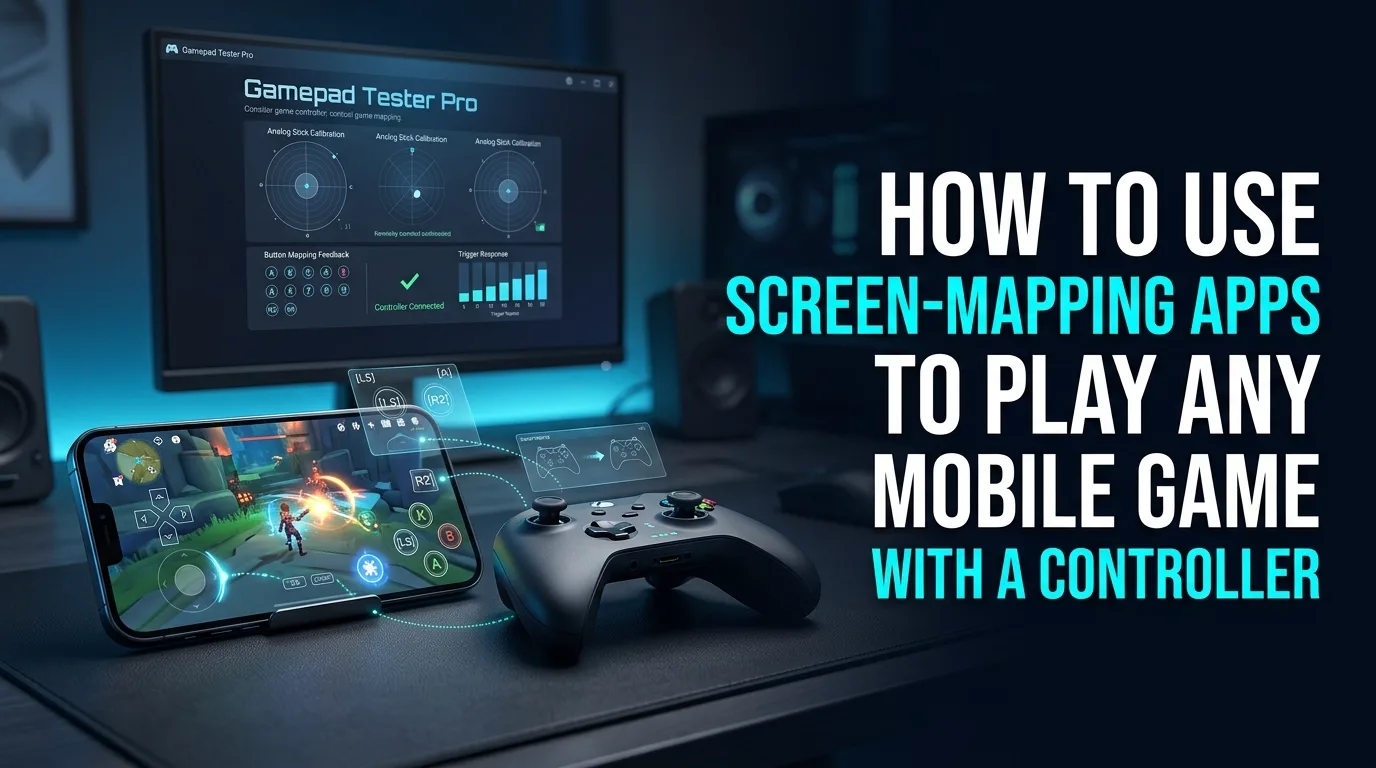
Phone mounts and USB-C pads?including devices covered in a typical Razer Kishi setup guide?shine when games expose native gamepad APIs. Screen mapping apps for mobile gamepads help unsigned titles by converting pad input into touch taps, but they carry policy risk.
Prefer native controller support whenever the publisher allows it. Mapping overlays are a last resort, not a default lifestyle.
Why do some mobile games block controllers?
Anti-cheat systems and touch-first design lead publishers to restrict pads. Respect platform rules. Mapping tools can violate terms of service. Avoid them for competitive ranked modes if bans are possible.
How do screen-mapping apps work?
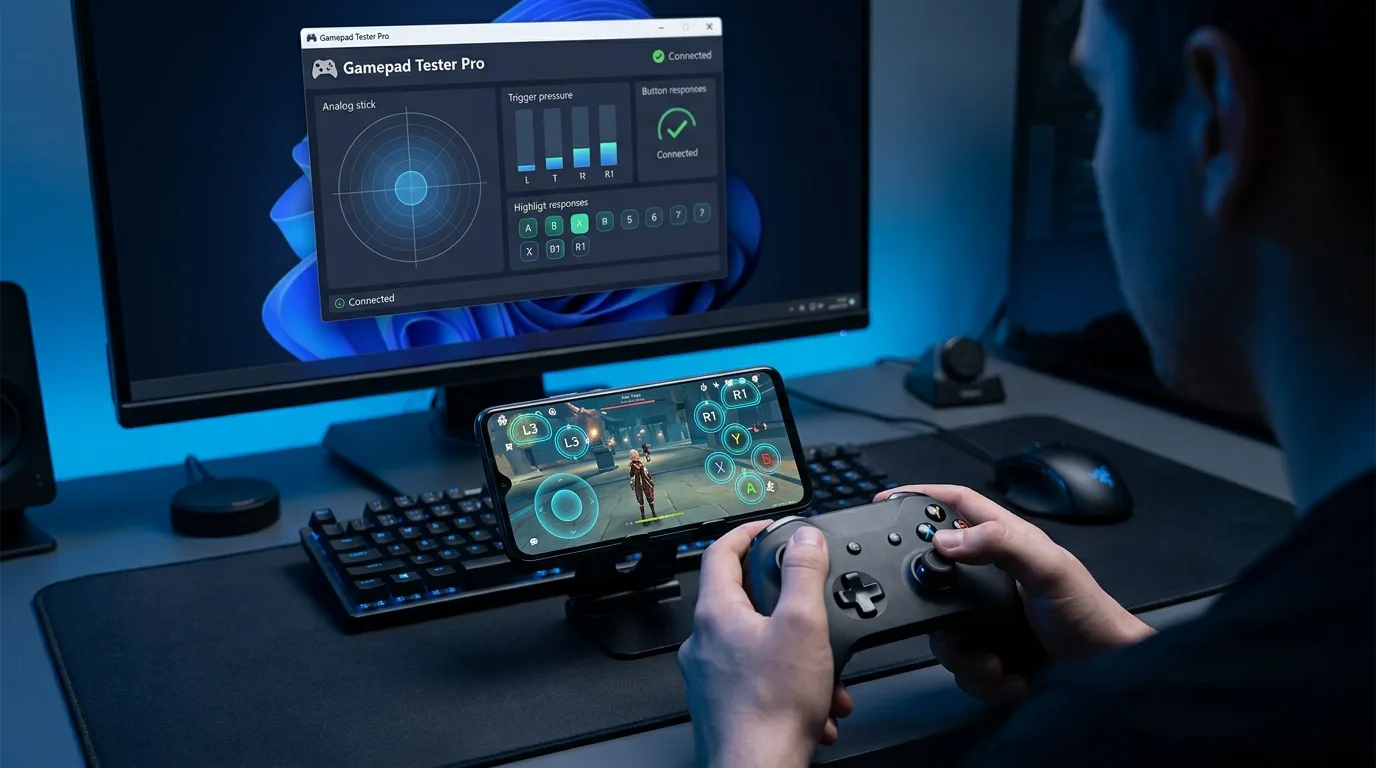
They watch controller buttons and inject touch events at on-screen coordinates you place. Setup takes patience: align taps with HUD buttons, tune opacity, and retest after resolution changes.
If the physical pad itself is unhealthy, mapping only multiplies frustration. Prove the pad on a PC browser with Controller Tester when the phone OS is unclear.
Clip-on vs USB-C backbone style pads
- Clip-on mounts ? portable, phone-size dependent
- USB-C backbone style ? lower latency path on supported phones
- Bluetooth pads ? flexible but more pairing variables
For a Kishi-style device, confirm phone compatibility, fit, and that the phone recognizes a gamepad endpoint. Then test in a native-supported title before attempting overlays.
Safer workflow for mobile controller play
- Seek games with official controller support first.
- Pair or dock the pad and confirm OS detection.
- Play a known supported title as a baseline.
- Only consider mapping apps for single-player or explicitly allowed cases.
- Retest after phone OS updates that reset input permissions.
Frequently asked questions
Are mapping apps banned?
They can violate some game and platform rules. Read the terms. When unsure, do not use them in ranked modes.
Why does my Kishi work in one game only?
That usually means only some titles implement gamepad APIs. The hardware can be fine.
Can I test mobile pads on PC?
Many USB-C pads need the phone in the middle, but Bluetooth pads often can be checked on Gamepad Tester from a PC.
Do overlays add lag?
Yes, some do. Native support is almost always cleaner.
Should I map analog sticks to swipe looks?
Possible in some apps, but precision varies wildly. Expect compromise.
Next steps
Native support first, healthy hardware second, overlays only with eyes open. Keep policy risk in the decision, not as an afterthought.
Native support discovery habits
Check patch notes and official controller badges before installing overlays. Native support is cleaner, safer for accounts, and usually lower latency.
Overlay setup quality bar
If you must map, realign after every resolution or UI scale change. Transparent HUDs drift. Keep sessions short while tuning. Prove the pad itself on Controller Tester when possible so you are not debugging two problems at once.
Policy and ranked play boundaries
Treat competitive modes as native-only unless the publisher explicitly allows mapping tools. Account risk is part of the total cost of an overlay workflow.
Matching the page to the real search query
People who land on this page from Google usually want a direct answer about screen mapping apps, then a trustworthy path for native gamepad API. This section expands that intent with practical detail you can reuse on PC, and where relevant on console-style pads brought to Windows.
Start by proving the device is visible. Open Controller Detection and press any button. If detection fails, stop reading advanced tips and fix cables, pairing, or power first. If detection succeeds, move into Controller Tester for a full control family pass, and use Controller Button Test when only digital controls are in doubt.
For issues tied to native gamepad API, keep a quiet idle ritual on Stick Drift Test when sticks matter. Games lie with deadzones. Browser idle samples do not. Write the worst reading you see, plus whether you were on USB or Bluetooth.
Readers comparing SERP results for screen mapping apps need more than a definition. They need a sequence that survives messy real desks: weak cables, busy Bluetooth neighborhoods, and games that hide symptoms.
Unique to this topic: treat screen mapping apps as the primary promise of the page, use native gamepad API as the diagnostic lens, and only escalate to ToS risk after Kishi setup checks are honest.
Step sequence for stubborn Kishi setup cases
- Reproduce the problem once so you know the starting symptom related to screen mapping apps.
- Switch to USB when possible to remove radio noise from the experiment.
- Confirm OS-level presence, then confirm browser presence on Gamepad Tester.
- Run the focused checks that match Kishi setup for this topic.
- Change one variable at a time and retest after each change.
- Stop when three matching samples agree, not after a single scary spike.
Clear steps, honest limits, and a next action reduce the chance you buy replacement hardware for a permissions, cable, or mode-switch problem tied to screen mapping apps.
When ToS risk enters the story, keep notes. Firmware updates, Steam overrides, and vendor apps change behavior overnight. A dated baseline on Gamepad Tester turns guesswork into comparison.
When native gamepad API is the pain point, isolate it from unrelated issues. A sticky bumper can feel like lag. A mode switch can feel like a dead pad. Measure before you spend.
For Kishi setup, keep vendor myths out of the first hour. Official firmware tools and clean OS detection beat random registry tips.
Regression checks after OS or firmware changes
After travel, spills, OS updates, or a used purchase, rerun a short health pass: detection, buttons, idle sticks, triggers, then optional rumble. That routine catches regressions early for anything related to screen mapping apps and ToS risk.
If results conflict between Bluetooth and USB, trust USB for hardware judgment and treat wireless as a separate radio project. If results conflict between a game and the browser, trust the browser for raw presence and investigate the game layer next.
Bookmark Controller Detection, Controller Button Test, Controller Tester, and Stick Drift Test. Reuse them whenever native gamepad API or Kishi setup shows up again instead of starting from forum folklore.
Finally, reconnect ToS risk to your notes. If the next OS update changes behavior, your dated Gamepad Tester baseline shows what shifted.
How to know the problem is actually solved
You should leave with a written symptom, a measured browser result, and a decision: keep playing, clean, remap, repair, or replace. That decision quality is what separates people-first guides from thin keyword pages about screen mapping apps.
If you publish clips or ask for help, include the controller name string, connection type, browser, and the exact panel readings. Those four facts make remote advice useful for native gamepad API cases.
Return to this page after repairs. A second measured pass is how you confirm Kishi setup and ToS risk actually improved, not just felt better for one match.
What screen mapping actually does (and what it cannot do)
Screen mapping translates controller inputs into touchscreen taps, swipes, and joystick zones: you draw a virtual stick over the game's movement area and assign buttons to on-screen positions, and the app injects touches where your fingers would go. What it cannot do is add controller support a game was never designed for in any deeper sense — camera control stays as clumsy as the touch layout it mimics, multi-touch gestures like pinch stay awkward, and games with complex touch UIs (inventory grids, building menus) map poorly. It also cannot bypass a game's own input rules: if a game bans third-party input tools, mapping counts as one. Understand the translation layer before you judge it — it is a bridge, not native support.
Android vs iOS: the platform gap is real
Screen mapping is a fundamentally different experience on the two platforms. Android allows mapping apps broad input access, so tools there are mature: per-game profiles, floating trigger buttons, mouse-style aiming modes, and deep customization. iOS restricts input injection, so mapping options are far thinner — most iPhone players rely on games with native controller support or on accessory-vendor apps tied to specific controllers. If you play on iOS and a game lacks native support, check the controller maker's own app first; generic mappers on iOS usually disappoint. Do not promise an Android-style mapping experience on iPhone — the OS simply does not allow it.
Setting up a clean mapping profile, step by step
A clean profile follows one order. One: connect the controller and confirm every button registers in a tester before opening the mapper — mapping a half-working pad wastes the whole session. Two: take a screenshot of the game's touch layout so you place zones precisely instead of guessing. Three: place the left stick zone over the game's movement area and the right-side buttons over action buttons, matching sizes to the on-screen buttons. Four: set dead zones so slight stick drift does not walk your character. Five: save the profile per game with a clear name — one profile per game, because touch layouts differ. Six: test in a safe area (a lobby or tutorial), not in a ranked match. A profile built in this order works first try far more often than one built by trial and error mid-game.
Aiming, shooting, and camera control with a mapped pad
The hardest part of mapping is not buttons but aiming. Touch shooters aim by dragging, so a mapped right stick must emulate drag speed and sensitivity — set it lower than you think, then raise it gradually, because an over-sensitive mapped aim overshoots constantly. Fire buttons map cleanly, but scope/zoom and weapon-switch buttons need positions that do not block the aim zone. Camera control in open-world mobile games maps worst of all: the right stick drags the camera, but without the fine control of a mouse it feels laggy, so accept a slower camera and lean on aim assist where the game offers it. If a game offers native controller support, always prefer it — mapping is the fallback for games that do not, not the equal of native play.
Bans, fairness, and when NOT to map
Mapping sits in a grey zone you must respect. Some competitive mobile games treat input-mapping tools as unfair advantages or ban them outright, and a few detect and flag them automatically — a banned account is a far worse outcome than a clumsy touch layout. Rules of thumb: single-player and casual games are safe; ranked competitive games need a check of the game's terms first; never map macros (one button triggering a combo) in any competitive game, as that is cheating by any definition. Also consider fairness in co-op: a mapped pad in a touch-only lobby is an advantage other players did not agree to. Map for accessibility and comfort, not to gain an edge others cannot.
Frequently asked questions
Do I need a rooted or jailbroken phone for screen mapping?
On Android, no — mainstream mapping apps work without root, using accessibility services. On iOS, mapping is limited regardless, and jailbreaking is not a recommended route for gaming alone.
Why does my mapped stick drift or walk on its own?
Usually a dead-zone issue: raise the mapper's dead zone slightly, and confirm the physical stick itself is not drifting by testing it in a browser controller tester first.
Will mapping work for every mobile game?
No — games with heavy multi-touch UIs, pinch gestures, or strict anti-cheat map poorly or not at all. Native controller support, where it exists, is always the better path.
Comments
Comments are moderated. New comments stay hidden until an admin approves them.
No public comments yet. Be the first to leave a helpful note.