Many pads enumerate as sound devices. Windows may switch default playback the moment you plug USB?classic gamepad audio troubleshooting when speakers go silent. Related searches like no sound from controller jack PC point at DualShock and DualSense headset pass-through quirks.
Fix the Windows default device first, then decide whether you actually want audio through the pad.
How do you stop Windows from switching audio to the gamepad?
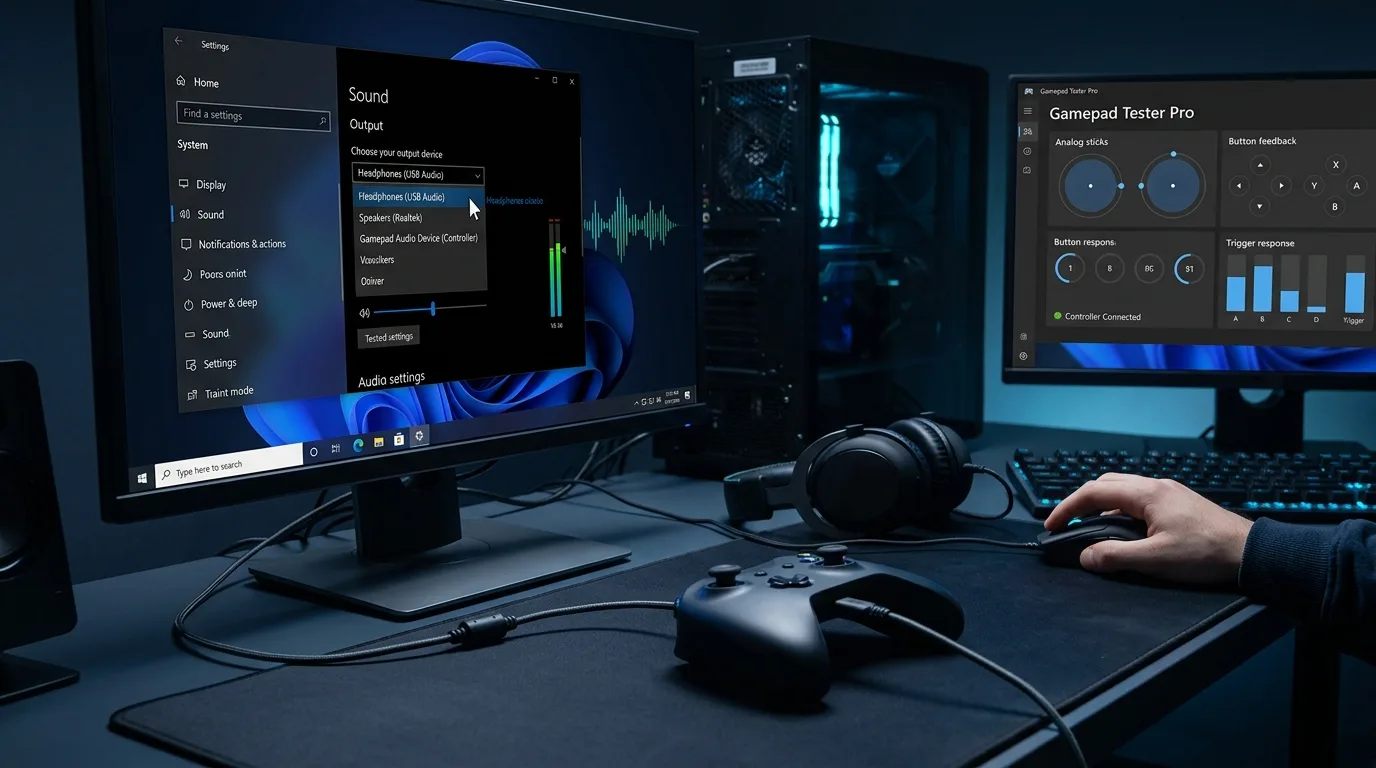
- Open Settings ? System ? Sound.
- Set your speakers or headset as the default output.
- In Sound Control Panel, review playback devices and disable unused pad endpoints if you never need them.
- Unplug and replug the pad to confirm the default sticks.
- Retest game audio and voice chat.
Exclusive mode experiments and enhancements on the pad endpoint can also steal focus. Keep the pad audio device disabled when you only need game input.
How do DualSense and DualShock headset jacks work on PC?
Jack pass-through on PC often needs vendor support paths or Steam features; wireless modes differ from USB. If there is still no sound from the controller jack, test another headset and confirm the pad still inputs on PS5 Controller Tester so you are not chasing a dead USB stack.
Mic static and wireless audio oddities
Wireless audio through a pad can pick up interference. Prefer a dedicated headset on the PC for serious voice chat. Use the pad jack for convenience, not as your only quality path.
Confirm the gamepad input path while fixing sound
Audio enumeration problems sometimes arrive with flaky USB hubs. While you fix sound defaults, verify buttons on Controller Button Test and detection on Controller Detection.
Persistent checklist
- Default playback locked to speakers or main headset
- Unused pad audio endpoints disabled
- Known-good USB cable and port
- Steam audio options checked if using DualSense features
Frequently asked questions
Why does audio cut only when the pad plugs in?
Windows is switching default playback to a newly connected audio endpoint exposed by the pad.
Will disabling the pad audio device break rumble?
Usually no. You are disabling the sound endpoint, not the gamepad input device.
Can Bluetooth headphones conflict too?
Yes. Multiple new endpoints confuse defaults. Set defaults explicitly after each change.
Is the 3.5mm jack supported wirelessly?
Support varies by pad and OS path. USB is the more predictable test.
Do I need new drivers for this?
Rarely. Default device hygiene fixes most silent-speaker cases.
Next steps
Lock defaults, disable unused endpoints, then decide if pad jack audio is worth enabling again. Keep input tests in the same session so USB faults do not hide behind sound frustration.
Windows sound defaults deep dive
After setting default playback, open the classic Sound Control Panel and disable pad endpoints you never use. Replug to confirm persistence across boots.
Voice chat apps sometimes pin devices separately. Check Discord or similar input/output overrides after fixing system defaults.
Controller jack troubleshooting without snake oil
Test a second headset, force USB instead of wireless, and confirm the pad still reports on PS5 Controller Tester. If input dies with audio, fix the USB path first.
Keeping input and audio mental models separate
A pad can be a great controller and a mediocre sound card. Disabling its audio endpoint is often the correct PC setup. Verify buttons anytime you change USB topology using Controller Button Test.
People Also Ask themes this guide answers
People who land on this page from Google usually want a direct answer about gamepad audio, then a trustworthy path for Windows default device. This section expands that intent with practical detail you can reuse on PC, and where relevant on console-style pads brought to Windows.
Start by proving the device is visible. Open Controller Detection and press any button. If detection fails, stop reading advanced tips and fix cables, pairing, or power first. If detection succeeds, move into Controller Tester for a full control family pass, and use Controller Button Test when only digital controls are in doubt.
For issues tied to Windows default device, keep a quiet idle ritual on Stick Drift Test when sticks matter. Games lie with deadzones. Browser idle samples do not. Write the worst reading you see, plus whether you were on USB or Bluetooth.
Readers comparing SERP results for gamepad audio need more than a definition. They need a sequence that survives messy real desks: weak cables, busy Bluetooth neighborhoods, and games that hide symptoms.
Unique to this topic: treat gamepad audio as the primary promise of the page, use Windows default device as the diagnostic lens, and only escalate to disable endpoints after controller jack checks are honest.
Ordered fixes for Windows default device without guesswork
- Reproduce the problem once so you know the starting symptom related to gamepad audio.
- Switch to USB when possible to remove radio noise from the experiment.
- Confirm OS-level presence, then confirm browser presence on Gamepad Tester.
- Run the focused checks that match controller jack for this topic.
- Change one variable at a time and retest after each change.
- Stop when three matching samples agree, not after a single scary spike.
Clear steps, honest limits, and a next action reduce the chance you buy replacement hardware for a permissions, cable, or mode-switch problem tied to gamepad audio.
When disable endpoints enters the story, keep notes. Firmware updates, Steam overrides, and vendor apps change behavior overnight. A dated baseline on Gamepad Tester turns guesswork into comparison.
When Windows default device is the pain point, isolate it from unrelated issues. A sticky bumper can feel like lag. A mode switch can feel like a dead pad. Measure before you spend.
For controller jack, keep vendor myths out of the first hour. Official firmware tools and clean OS detection beat random registry tips.
Keep a lab note so results stay comparable
After travel, spills, OS updates, or a used purchase, rerun a short health pass: detection, buttons, idle sticks, triggers, then optional rumble. That routine catches regressions early for anything related to gamepad audio and disable endpoints.
If results conflict between Bluetooth and USB, trust USB for hardware judgment and treat wireless as a separate radio project. If results conflict between a game and the browser, trust the browser for raw presence and investigate the game layer next.
Bookmark Controller Detection, Controller Button Test, Controller Tester, and Stick Drift Test. Reuse them whenever Windows default device or controller jack shows up again instead of starting from forum folklore.
Finally, reconnect disable endpoints to your notes. If the next OS update changes behavior, your dated Gamepad Tester baseline shows what shifted.
Exit criteria: keep, clean, or replace
You should leave with a written symptom, a measured browser result, and a decision: keep playing, clean, remap, repair, or replace. That decision quality is what separates people-first guides from thin keyword pages about gamepad audio.
If you publish clips or ask for help, include the controller name string, connection type, browser, and the exact panel readings. Those four facts make remote advice useful for Windows default device cases.
Return to this page after repairs. A second measured pass is how you confirm controller jack and disable endpoints actually improved, not just felt better for one match.
Why plugging in a pad steals your audio: the device-switch explanation
When a gamepad with a headset jack or built-in audio device connects, Windows often promotes it to the default audio device — or the game switches its audio output to the new device. The result is familiar: sound vanishes from your speakers or headset the moment the pad connects, even though nothing is muted. The same happens on the input side when a pad's microphone becomes the default mic. This is not a fault in the pad or the speakers; it is the OS doing exactly what it was told to do (prefer the newest audio device). Once you understand the switch, the fix is obvious: tell the OS which device you actually want, and stop it from switching on its own.
The five-minute fix order for Windows
Work this order and stop when sound returns. One: right-click the speaker icon, open Sound settings, and set your real speakers or headset as both Default Device and Default Communication Device. Two: in the same panel, disable the gamepad's audio device (right-click, Disable) if you never use the pad's headset jack — this prevents future switches. Three: in your game's audio settings, set the output device explicitly instead of "Default" or "System Default". Four: in Device Manager, check the pad's audio endpoint for driver warnings and update or reinstall if flagged. Five: restart the game (not the PC) after changing defaults, since many games read the audio device only at launch. Most cases resolve at step one or two.
Bluetooth vs wired: why the symptom differs
Wired pads usually trigger the switch once, at plug-in, because the USB audio endpoint appears exactly then. Bluetooth pads are trickier: they expose two profiles — a high-quality stereo profile for listening and a low-quality hands-free profile for calls — and Windows drops to the muffled hands-free profile the moment any app opens the microphone (a voice chat, a game lobby, even a browser tab asking for mic access). That is why Bluetooth audio suddenly sounds like a phone call mid-game. Fixes: disable the hands-free profile for the pad in Sound settings if you never use its mic, or use a separate dedicated mic so no app opens the pad's mic channel. Wired users rarely see this; Bluetooth users see it constantly.
When it is NOT a device switch: driver and hardware causes
If the device settings are correct and audio still cuts out, look deeper. A corrupted or outdated audio driver can drop output when a new USB device enumerates — update the motherboard or sound-card audio driver, not just the pad driver. A failing USB port or hub can brown out the audio endpoint when the pad draws power — try a direct motherboard port instead of a hub. A damaged pad cable can enumerate and re-enumerate repeatedly, each time re-triggering the switch — watch Device Manager for a device appearing and disappearing. And some games have their own audio-device bugs that ignore Windows defaults entirely; for those, the in-game output setting (step three above) is the only fix. Work the list before blaming the pad.
Preventing it permanently: defaults, profiles, and discipline
Three habits end the problem for good. One: after fixing it once, disable every audio endpoint you do not use (pad audio, monitor speakers, unused virtual devices) so the OS has nothing to switch to. Two: keep a named audio profile if your sound software supports one, and re-apply it after major Windows updates, which sometimes reset defaults. Three: plug the pad in before launching the game, not during — games that read audio at launch then start on the right device. These are one-time setups, not daily chores, and they convert a recurring annoyance into a solved problem.
Frequently asked questions
My audio works but my mic stopped when I plugged in the pad — same cause?
Yes — the pad's microphone became the default input. Set your real mic as Default Communication Device and disable the pad's mic endpoint if you never use it.
Why does my Bluetooth headset sound muffled only when gaming with a pad?
Your system dropped to the hands-free profile because an app opened a microphone channel. Disable the pad's hands-free profile or use a separate mic to keep stereo audio.
Should I uninstall the gamepad's audio driver?
Disabling the endpoint is enough and safer than uninstalling — uninstalling invites Windows to reinstall it on the next plug-in. Disable, don't uninstall.
Comments
Comments are moderated. New comments stay hidden until an admin approves them.
No public comments yet. Be the first to leave a helpful note.