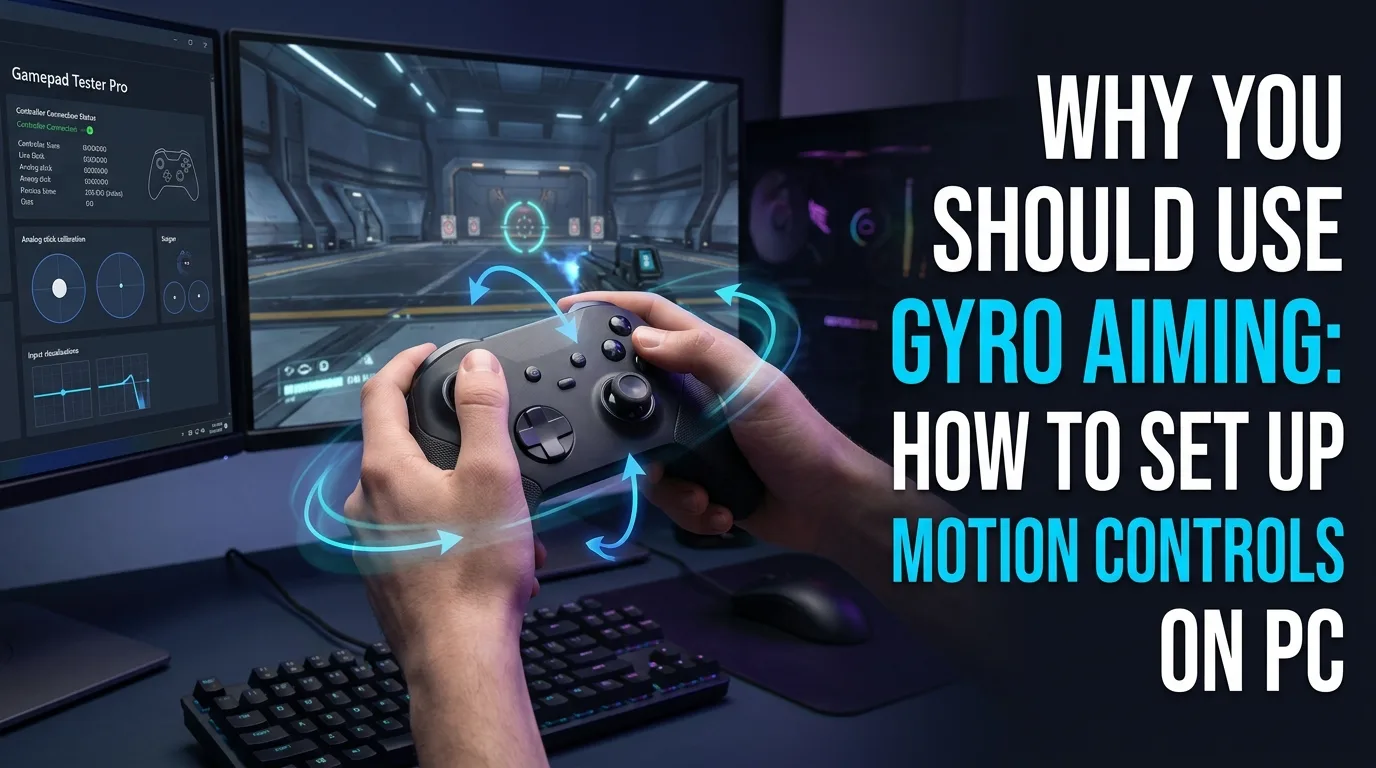
Gyro aiming PC games add mouse-like micro corrections on DualSense, DualShock, Switch Pro, and similar pads. It is powerful for tracking heads and controlling recoil, but bad stick drift still fights you. Verify idle on Stick Drift Test before you invest hours in motion tuning.
This guide covers why gyro helps, how to enable motion controls through Steam or native options, and why official Xbox pads omit gyro sensors.
Why should you use gyro aiming?
Sticks excel at large motions. Gyro excels at fine tracking. Many competitive controller players mix both: stick for flicks, gyro for settle and recoil.
If your pad lacks sensors, no software setting invents true gyro. Pick hardware that includes a gyroscope when motion aim is mandatory for you.
How do you enable gyro aiming on PC?
1. Confirm the pad has gyro hardware.
2. For Steam titles, enable Steam Input and open the gyro section of a layout.
3. For native support, toggle motion aim in the game options.
4. Calibrate on a stable surface per the tool prompts.
5. Start with low sensitivity and raise slowly in training mode.
6. Retest stick idle so drift is not mistaken for gyro noise.
Steam Input gyro tips that actually matter
Choose whether gyro engages always, on aim, or on a hold button. On-aim styles feel natural in shooters. Keep a reset orientation hotkey. Document your layout name so updates do not wipe progress.
Why do Xbox controllers skip gyro?
Official Xbox pads historically omit gyro sensors. That is a product choice, not a Windows bug. If your workflow depends on motion, use DualSense, Switch Pro, or another sensor-equipped pad, then verify buttons and sticks on Controller Tester.
Common gyro mistakes
• Tuning gyro while sticks are drifting
• Sensitivity so high that resting hands create sway
• Forgetting different vertical and horizontal rates
• Enabling Steam gyro on top of native gyro
Frequently asked questions
Is gyro better than aim assist alone?
They solve different problems. Gyro adds precision; assist still varies by game. Many players use both carefully.
Can I add gyro to an Xbox pad?
Not practically through software. You need sensor hardware.
Does Bluetooth hurt gyro?
Unstable links add noise. Prefer a strong connection while learning sensitivities.
Should beginners start with high gyro sense?
No. Start low in a training range, then raise until micro corrections feel natural.
How do I know stick drift is interfering?
Run a quiet idle test. If magnitude stays elevated, fix drift before blaming gyro settings.
Next steps
Healthy sticks first, then modest gyro, then game-specific polish. Motion aim rewards patience more than max sensitivity.
Sensitivity ladders that actually stick
Raise gyro in small steps after ten minutes in a training range. Separate horizontal and vertical rates if the game allows. If resting hands create sway, you went too far.
Keep stick health honest with Stick Drift Test whenever motion aim suddenly “gets worse.”
Steam versus native gyro without double input
Enable one path only. Native plus Steam gyro creates unpredictable amplification. Document which games use which path.
Hardware shopping for motion aim
Choose pads with real gyros. Verify buttons and idle on Controller Tester after purchase. Comfort and stick quality still matter; gyro cannot save a miserable shell.
People Also Ask themes this guide answers
People who land on this page from Google usually want a direct answer about gyro aiming, then a trustworthy path for motion controls. This section expands that intent with practical detail you can reuse on PC, and where relevant on console-style pads brought to Windows.
Start by proving the device is visible. Open Controller Detection and press any button. If detection fails, stop reading advanced tips and fix cables, pairing, or power first. If detection succeeds, move into Controller Tester for a full control family pass, and use Controller Button Test when only digital controls are in doubt.
For issues tied to motion controls, keep a quiet idle ritual on Stick Drift Test when sticks matter. Games lie with deadzones. Browser idle samples do not. Write the worst reading you see, plus whether you were on USB or Bluetooth.
Readers comparing SERP results for gyro aiming need more than a definition. They need a sequence that survives messy real desks: weak cables, busy Bluetooth neighborhoods, and games that hide symptoms.
Unique to this topic: treat gyro aiming as the primary promise of the page, use motion controls as the diagnostic lens, and only escalate to sensor hardware after Steam gyro checks are honest.
Ordered fixes for motion controls without guesswork
1. Reproduce the problem once so you know the starting symptom related to gyro aiming.
2. Switch to USB when possible to remove radio noise from the experiment.
3. Confirm OS-level presence, then confirm browser presence on Gamepad Tester.
4. Run the focused checks that match Steam gyro for this topic.
5. Change one variable at a time and retest after each change.
6. Stop when three matching samples agree, not after a single scary spike.
Clear steps, honest limits, and a next action reduce the chance you buy replacement hardware for a permissions, cable, or mode-switch problem tied to gyro aiming.
When sensor hardware enters the story, keep notes. Firmware updates, Steam overrides, and vendor apps change behavior overnight. A dated baseline on Gamepad Tester turns guesswork into comparison.
When motion controls is the pain point, isolate it from unrelated issues. A sticky bumper can feel like lag. A mode switch can feel like a dead pad. Measure before you spend.
For Steam gyro, keep vendor myths out of the first hour. Official firmware tools and clean OS detection beat random registry tips.
Keep a lab note so results stay comparable
After travel, spills, OS updates, or a used purchase, rerun a short health pass: detection, buttons, idle sticks, triggers, then optional rumble. That routine catches regressions early for anything related to gyro aiming and sensor hardware.
If results conflict between Bluetooth and USB, trust USB for hardware judgment and treat wireless as a separate radio project. If results conflict between a game and the browser, trust the browser for raw presence and investigate the game layer next.
Bookmark Controller Detection, Controller Button Test, Controller Tester, and Stick Drift Test. Reuse them whenever motion controls or Steam gyro shows up again instead of starting from forum folklore.
Finally, reconnect sensor hardware to your notes. If the next OS update changes behavior, your dated Gamepad Tester baseline shows what shifted.
Exit criteria: keep, clean, or replace
You should leave with a written symptom, a measured browser result, and a decision: keep playing, clean, remap, repair, or replace. That decision quality is what separates people-first guides from thin keyword pages about gyro aiming.
If you publish clips or ask for help, include the controller name string, connection type, browser, and the exact panel readings. Those four facts make remote advice useful for motion controls cases.
Return to this page after repairs. A second measured pass is how you confirm Steam gyro and sensor hardware actually improved, not just felt better for one match.
Gyro aiming vs stick aiming: why fine control feels different
Stick aiming moves at a fixed speed set by deflection; gyro aiming moves with your hands, so small wrist motions give pixel-level corrections that sticks cannot match. That is why competitive players pair gyro with sticks: the right stick handles large turns, gyro handles the last few pixels of a headshot. It is not a replacement for sticks — it is a second, finer layer on top of them. Players who try gyro as a stick replacement usually quit in a day; players who keep sticks for turns and add gyro for aiming adjustments usually keep it forever.
Which pads and games actually support gyro on PC
On PC, gyro support comes from the pad plus the platform layer, not the game alone. DualSense and DualShock 4 expose gyro over USB and Bluetooth, and Steam Input turns that gyro into mouse-like or stick-like output for nearly any game. Switch Pro Controller gyro works through Steam Input as well. Xbox pads have no gyro hardware, so gyro aiming is not an option on them — check hardware before promising it. Games with native gyro support (mostly shooters with PlayStation or Switch versions) use it directly; every other game needs Steam Input as the translation layer. Confirm your pad and your path first: pad gyro, Steam Input enabled, game receiving mouse or right-stick output.
Setting up gyro in Steam Input, step by step
Enable Steam Input for the game, open the controller layout, and find the gyro setting (usually under the right-pad or gyro behavior section). Set gyro activation to a button you already hold while aiming — right trigger pull, left trigger touch, or a dedicated grip button — so gyro is off while you move and on while you aim. Start with a moderate sensitivity and a small deadzone, then test in a practice range before a live match. If aiming feels inverted or drifty, check two things first: gyro calibration in Steam (hold the pad still on a flat surface and recalibrate) and whether another layer (the game's own aim assist or deadzone) is fighting the gyro output. One layer at a time, tested in practice, beats changing five settings mid-match.
Flick stick + gyro: the combination competitive players use
Flick stick turns the right stick into an instant flick-to-angle control while gyro handles fine aim — together they cover both speed and precision. The stick flicks your view to roughly the target's direction; gyro finishes the last degrees. Setup takes patience: set the stick to flick mode in Steam Input, bind gyro to the same aim context, and spend at least three practice sessions before judging it. Early sessions feel worse than sticks alone — that is normal, because your muscle memory is rebuilding. Players who persist past the first week usually report faster target acquisition than sticks alone, especially in close-to-mid-range fights where the flick lands you near the target and gyro closes the gap.
Gyro troubleshooting: drift, inversion, and dead zones
Gyro drift (the view creeping when the pad is still) usually means calibration, not hardware failure: recalibrate on a flat surface, check for a loose USB cable or low Bluetooth battery, and confirm no other app is also reading the gyro. Inverted aim almost always means a flipped axis setting in Steam Input or the game — toggle one axis at a time and test. A gyro deadzone that feels numb usually means the game's own deadzone is stacking on top of Steam's; lower one of them, not both. If gyro works in Steam's test view but not in the game, the game's input mode is the suspect: confirm the game is receiving mouse output (for mouse-like gyro) or right-stick output (for stick-like gyro) and that no Steam Input override is disabling it.
Frequently asked questions
Do I need a PlayStation controller for gyro aiming on PC?
Practically yes for the easiest path — DualSense and DualShock 4 have gyro hardware and Steam Input support. Switch Pro Controller also works through Steam. Xbox pads have no gyro, so they cannot do gyro aiming at all.
Will gyro aiming make me instantly better?
No. Expect the first few sessions to feel worse as muscle memory rebuilds. The payoff comes after a week or more of consistent use, mostly in fine-aim situations where sticks overshoot.
Can I use gyro and a mouse at the same time?
Not meaningfully in the same game — pick one aiming device per session. Gyro is for controller players who want mouse-like fine control without leaving the pad.
Comments
Comments are moderated. New comments stay hidden until an admin approves them.
No public comments yet. Be the first to leave a helpful note.