People search connect wireless game controller workflows because pairing should be boring and often is not. Bluetooth stacks, mobile OS limits, and generic USB mappings get in the way. This guide covers PC Bluetooth pairing, Xbox and PlayStation pads on phones, and generic USB gamepad calibration habits that survive restarts.
Always prove the operating system sees the device before you chase per-game fixes. Then verify buttons, sticks, and triggers in a desktop browser so you have numbers, not vibes.
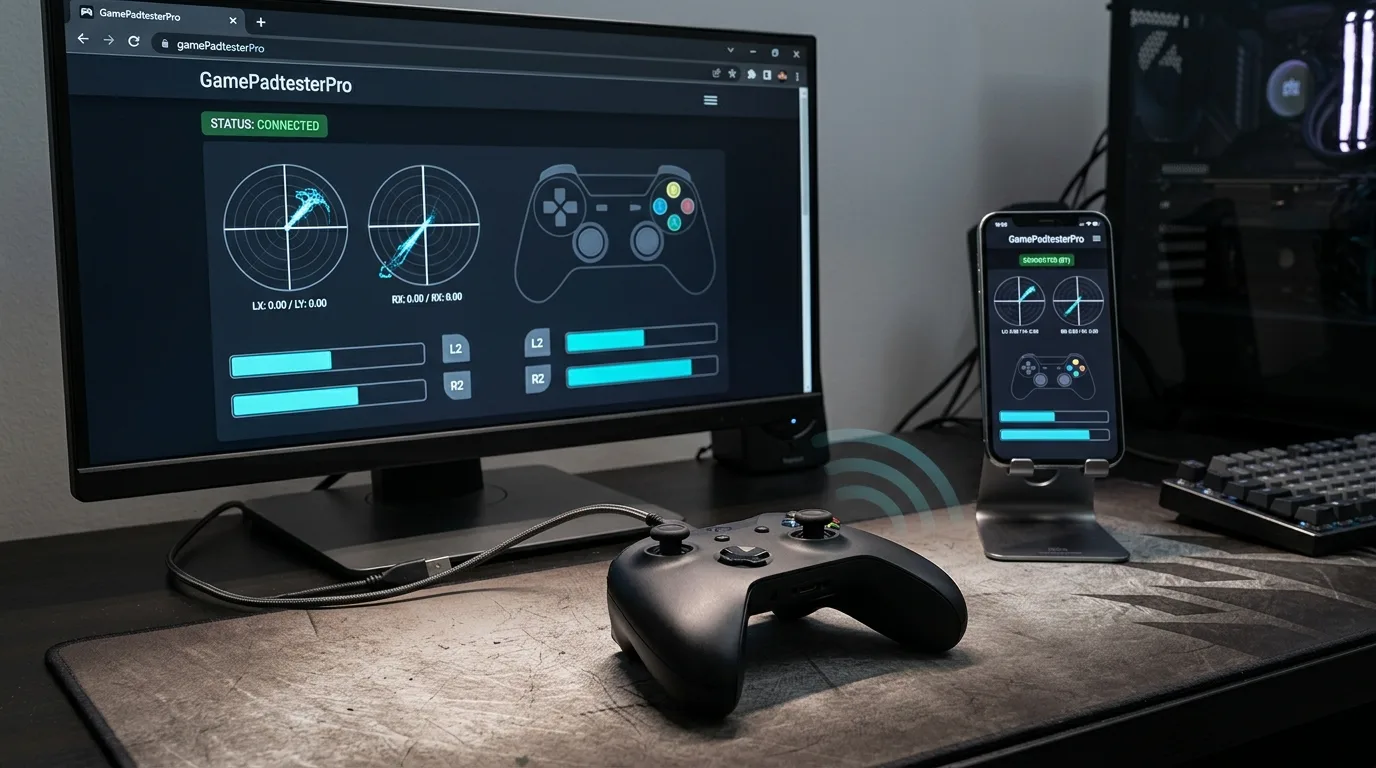
How do you connect a wireless game controller to a PC via Bluetooth?
- Put the pad in pairing mode using the vendor button combo.
- On Windows: Settings → Bluetooth & devices → Add device → Bluetooth.
- On Mac: System Settings → Bluetooth → select the pad when it appears.
- Open Bluetooth Controller Tester or Controller Detection and press a button.
- If pairing is flaky, finish a USB pass first so you know the hardware is healthy.
Remove stale Bluetooth entries after major OS updates, then re-pair from scratch. Latency spikes often track interference, a weak dongle, or distance—not broken sticks. Keep the pad within a few meters of the adapter during the first verification.
How do Xbox and PlayStation controllers work on Android and iOS?
Modern phones can pair many Xbox and DualSense / DualShock pads over Bluetooth, but game support varies by title and OS version. Confirm OS-level connection first, then test inside an app that actually reads gamepad input. Browser testing on phones is less consistent than desktop Chromium, so use a PC browser when you need clear axis numbers.
For platform-focused PC checks after the pad appears in the OS, open Xbox Controller Tester or PS5 Controller Tester.
How do you calibrate a generic USB gamepad for PC gaming?
Plug in the pad and confirm Windows Game Controllers (joy.cpl) or the Mac equivalent lists it. If the hardware has a physical D/X switch, set it to XInput for modern titles, then verify on XInput Tester.
Tools like x360ce help older DirectInput pads pretend to be Xbox devices for specific games. Always verify raw browser values on USB Controller Tester before you chase wrappers. If buttons never flip there, the OS never received a clean device and the wrapper cannot invent one.
What should you check after pairing succeeds?
- Face buttons, bumpers, stick clicks, and D-pad on Controller Button Test.
- Idle sticks on Stick Drift Test before competitive play.
- Trigger travel from released to fully pressed in Controller Tester.
- Optional rumble on Vibration Test when the browser exposes actuators.
Wireless vs wired latency: what should you expect?
Wired USB usually wins for diagnosis and competitive consistency. Wireless is fine for couch play when pairing is solid. If Bluetooth feels late but USB is crisp on the same pad and same display, fix the radio path before replacing hardware. Retest both modes on Gamepad Tester and keep short notes.
TV game mode, VRR quirks, and frame pacing can feel like pad lag. Isolate the controller layer with a browser input panel before you blame the sticks.
Mobile calibration limits you should know
Phones rarely offer the same calibration depth as Windows joy.cpl. Many mobile titles only expose their own deadzone sliders. Treat mobile as a play surface and desktop browser tests as the diagnostic surface when something feels wrong.
Frequently asked questions
Why does my controller connect then disappear?
Stale Bluetooth cache, power saving, or another app reclaiming the device are common. Remove the device entry, reboot, reconnect by cable first, then re-pair wireless.
Do I need special drivers for DualSense on PC?
Basic input often works over USB without third-party drivers. Full console-style haptics and adaptive triggers depend on the game and OS support, not on a random driver pack site.
Can I calibrate sticks permanently in a browser?
Most browser tools only show live values. Permanent DualShock 4 and DualSense center or range writes need the USB WebHID calibration lab on supported pads.
Why does mobile see the pad but the game does not?
OS pairing is not the same as game support. Some titles are touch-only or block controllers. Confirm with another controller-ready app before blaming the hardware.
Should I use Steam Input during first pairing?
Prove raw OS and browser health first. Add Steam Input afterward if a specific game needs remapping, so you know which layer fixed the problem.
Where should you go next?
Bookmark detection, USB, Bluetooth, and stick drift panels. After any OS update, re-run a two-minute health pass so you catch driver regressions before a ranked session.
Matching the page to the real search query
People who land on this page from Google usually want a direct answer about connect wireless game controller, then a trustworthy path for Bluetooth pairing. This section expands that intent with practical detail you can reuse on PC, and where relevant on console-style pads brought to Windows.
Start by proving the device is visible. Open Controller Detection and press any button. If detection fails, stop reading advanced tips and fix cables, pairing, or power first. If detection succeeds, move into Controller Tester for a full control family pass, and use Controller Button Test when only digital controls are in doubt.
For issues tied to Bluetooth pairing, keep a quiet idle ritual on Stick Drift Test when sticks matter. Games lie with deadzones. Browser idle samples do not. Write the worst reading you see, plus whether you were on USB or Bluetooth.
Readers comparing SERP results for connect wireless game controller need more than a definition. They need a sequence that survives messy real desks: weak cables, busy Bluetooth neighborhoods, and games that hide symptoms.
Unique to this topic: treat connect wireless game controller as the primary promise of the page, use Bluetooth pairing as the diagnostic lens, and only escalate to mobile OS limits after USB calibration checks are honest.
Step sequence for stubborn USB calibration cases
- Reproduce the problem once so you know the starting symptom related to connect wireless game controller.
- Switch to USB when possible to remove radio noise from the experiment.
- Confirm OS-level presence, then confirm browser presence on Gamepad Tester.
- Run the focused checks that match USB calibration for this topic.
- Change one variable at a time and retest after each change.
- Stop when three matching samples agree, not after a single scary spike.
Clear steps, honest limits, and a next action reduce the chance you buy replacement hardware for a permissions, cable, or mode-switch problem tied to connect wireless game controller.
When mobile OS limits enters the story, keep notes. Firmware updates, Steam overrides, and vendor apps change behavior overnight. A dated baseline on Gamepad Tester turns guesswork into comparison.
When Bluetooth pairing is the pain point, isolate it from unrelated issues. A sticky bumper can feel like lag. A mode switch can feel like a dead pad. Measure before you spend.
For USB calibration, keep vendor myths out of the first hour. Official firmware tools and clean OS detection beat random registry tips.
Regression checks after OS or firmware changes
After travel, spills, OS updates, or a used purchase, rerun a short health pass: detection, buttons, idle sticks, triggers, then optional rumble. That routine catches regressions early for anything related to connect wireless game controller and mobile OS limits.
If results conflict between Bluetooth and USB, trust USB for hardware judgment and treat wireless as a separate radio project. If results conflict between a game and the browser, trust the browser for raw presence and investigate the game layer next.
Bookmark Controller Detection, Controller Button Test, Controller Tester, and Stick Drift Test. Reuse them whenever Bluetooth pairing or USB calibration shows up again instead of starting from forum folklore.
Finally, reconnect mobile OS limits to your notes. If the next OS update changes behavior, your dated Gamepad Tester baseline shows what shifted.
How to know the problem is actually solved
You should leave with a written symptom, a measured browser result, and a decision: keep playing, clean, remap, repair, or replace. That decision quality is what separates people-first guides from thin keyword pages about connect wireless game controller.
If you publish clips or ask for help, include the controller name string, connection type, browser, and the exact panel readings. Those four facts make remote advice useful for Bluetooth pairing cases.
Return to this page after repairs. A second measured pass is how you confirm USB calibration and mobile OS limits actually improved, not just felt better for one match.
Comments
Comments are moderated. New comments stay hidden until an admin approves them.
No public comments yet. Be the first to leave a helpful note.