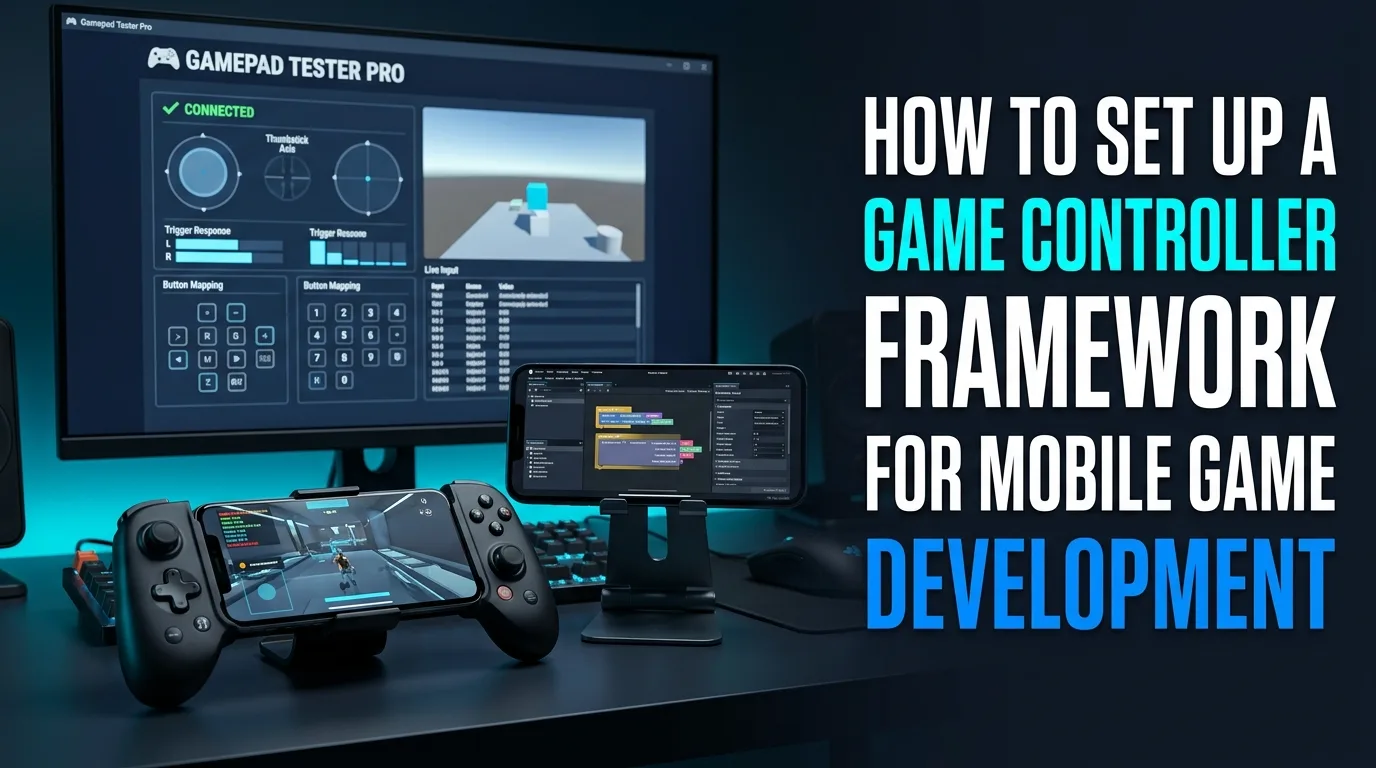
Players expect optional physical pads on successful mobile titles. A maintainable game controller framework keeps touch and hardware inputs in one action map so you are not forking logic per brand. This guide focuses on practical mobile game development input choices in Unity and Unreal, glyph swapping, and QA that catches reconnect storms.
Validate prototypes with real pads and, for web builds, a desktop browser tester so indexes are visible while you iterate.
Which input system should you choose for mobile controller support?
Unity's Input System and Unreal's Enhanced Input both favor action-based bindings over raw button indexes. Define Move, Look, Jump, and Interact once, then bind touch UI and gamepad controls to those actions. That single map is the core of a durable framework.
Avoid scattering Input.GetKey style checks across gameplay scripts. Centralize device connection events so UI can show "press any button" prompts when a pad appears.
How do you set up the framework step by step?
- Create an action map shared by touch and gamepad.
- Detect connection and disconnection; show an on-screen hint when a pad appears.
- Normalize stick deadzones in software and expose player-facing sliders.
- Map Xbox, PlayStation, and generic layouts with glyphs that swap by device family.
- Test physical pads on a desktop browser with Controller Tester while prototyping web builds, and on real phones for store builds.
- Add automated smoke tests that simulate connect, idle stick, and rapid button churn.
How should touch and physical controls share the same actions?
Touch virtual sticks should feed the same Move action as the left analog stick. Face-button overlays should fire the same Jump action as A or Cross. When both are active, decide precedence explicitly so a resting thumb on a virtual stick does not fight a physical pad.
What QA checks catch controller bugs early?
Validate idle sticks, button churn, and reconnect storms. Capture failing indexes with Controller Button Test. Keep Bluetooth and USB paths in your matrix because mobile stacks differ by OS version.
Ship with a simple in-game "press any button to identify" prompt so support can tell which layout the player actually has.
Platform gotchas on Android and iOS
Not every Bluetooth pad enumerates the same button indexes. Some devices drop during backgrounding. Test DualSense, Xbox, and at least one generic pad. Document known missing features such as adaptive triggers that will not mirror console behavior on mobile.
Frequently asked questions
Should I support every controller brand?
Support the major console pads plus a generic fallback map. Endless brand-specific forks are maintenance traps.
Do I need the Unity Input System?
For new projects, yes if you want clean action maps across touch and gamepads. Legacy Input Manager projects can migrate module by module.
How do I debug indexes quickly?
Use a desktop browser button tester while you prototype, then confirm on device logs for store builds.
Should deadzones be hardcoded?
No. Provide sensible defaults and player sliders. Hardware varies more than one constant can cover.
Can browser tests replace device QA?
No. They speed up mapping discovery for web builds. Store builds still need phones and real Bluetooth sessions.
Where developers should go next
Wire detection events, then verify glyphs and deadzones with live pads. Keep Gamepad Tester bookmarked during early web prototyping so you are never guessing indexes.
SERP-aligned questions worth answering first
People who land on this page from Google usually want a direct answer about game controller framework, then a trustworthy path for action maps. This section expands that intent with practical detail you can reuse on PC, and where relevant on console-style pads brought to Windows.
Start by proving the device is visible. Open Controller Detection and press any button. If detection fails, stop reading advanced tips and fix cables, pairing, or power first. If detection succeeds, move into Controller Tester for a full control family pass, and use Controller Button Test when only digital controls are in doubt.
For issues tied to action maps, keep a quiet idle ritual on Stick Drift Test when sticks matter. Games lie with deadzones. Browser idle samples do not. Write the worst reading you see, plus whether you were on USB or Bluetooth.
Readers comparing SERP results for game controller framework need more than a definition. They need a sequence that survives messy real desks: weak cables, busy Bluetooth neighborhoods, and games that hide symptoms.
Unique to this topic: treat game controller framework as the primary promise of the page, use action maps as the diagnostic lens, and only escalate to reconnect QA after glyph swapping checks are honest.
Workbench method for glyph swapping
- Reproduce the problem once so you know the starting symptom related to game controller framework.
- Switch to USB when possible to remove radio noise from the experiment.
- Confirm OS-level presence, then confirm browser presence on Gamepad Tester.
- Run the focused checks that match glyph swapping for this topic.
- Change one variable at a time and retest after each change.
- Stop when three matching samples agree, not after a single scary spike.
Clear steps, honest limits, and a next action reduce the chance you buy replacement hardware for a permissions, cable, or mode-switch problem tied to game controller framework.
When reconnect QA enters the story, keep notes. Firmware updates, Steam overrides, and vendor apps change behavior overnight. A dated baseline on Gamepad Tester turns guesswork into comparison.
When action maps is the pain point, isolate it from unrelated issues. A sticky bumper can feel like lag. A mode switch can feel like a dead pad. Measure before you spend.
For glyph swapping, keep vendor myths out of the first hour. Official firmware tools and clean OS detection beat random registry tips.
Calendar reminders that prevent repeat failures
After travel, spills, OS updates, or a used purchase, rerun a short health pass: detection, buttons, idle sticks, triggers, then optional rumble. That routine catches regressions early for anything related to game controller framework and reconnect QA.
If results conflict between Bluetooth and USB, trust USB for hardware judgment and treat wireless as a separate radio project. If results conflict between a game and the browser, trust the browser for raw presence and investigate the game layer next.
Bookmark Controller Detection, Controller Button Test, Controller Tester, and Stick Drift Test. Reuse them whenever action maps or glyph swapping shows up again instead of starting from forum folklore.
Finally, reconnect reconnect QA to your notes. If the next OS update changes behavior, your dated Gamepad Tester baseline shows what shifted.
Final pass before you close the ticket
You should leave with a written symptom, a measured browser result, and a decision: keep playing, clean, remap, repair, or replace. That decision quality is what separates people-first guides from thin keyword pages about game controller framework.
If you publish clips or ask for help, include the controller name string, connection type, browser, and the exact panel readings. Those four facts make remote advice useful for action maps cases.
Return to this page after repairs. A second measured pass is how you confirm glyph swapping and reconnect QA actually improved, not just felt better for one match.
Unity Input System vs Unreal Enhanced Input: what actually differs on mobile
Both systems share the action-map idea, but their mobile ergonomics differ in ways that decide your architecture. Unity's Input System gives you control schemes: one action map can carry separate touch, gamepad, and keyboard schemes, and the active scheme switches automatically when a device connects — ideal for a mobile game where a player may pick up a pad mid-session. Its on-screen controls package lets touch UI feed the same actions without custom code. Unreal's Enhanced Input gives you input mapping contexts with priority layers: a gameplay context, a menu context, and a vehicle context can stack and override each other, which suits games with many modes but needs careful context management on mobile where a phone call or notification can background the app. Unreal's mobile story also leans on its own touch interface, so bridging touch and pad actions takes more manual wiring than Unity's scheme switching. Choose Unity's system when touch-to-pad handoff is your core loop; choose Enhanced Input when layered contexts and per-mode remapping matter more. Either way, the rule from this guide stands: one action map, device families as bindings — never per-brand gameplay forks.
Godot and native APIs: the third path worth knowing
Not every mobile game is Unity or Unreal. Godot's InputMap gives you the same action-map pattern with less ceremony: define actions in the project settings, bind joypad buttons and axes by device-agnostic event, and let Godot's joypad mapping layer handle brand differences. For native development, Android's InputDevice API and iOS's GameController framework expose pads directly, but both require you to handle the same problems this guide covers — enumeration order, disconnect events, and per-device button indexes — with no engine smoothing them over. The native path is the right call only when your game already lives outside an engine; otherwise you are re-implementing what Unity, Unreal, or Godot already ship. Whatever the stack, prototype the mapping on a desktop browser first: open Controller Tester, press each control, and record the indexes your engine will see — mapping discovery is identical work in every stack, and the browser makes it visible.
Deadzone and sensitivity tuning for mobile pads
Mobile pads need different deadzone defaults than console pads, and shipping console defaults is a common bug. Phone players rest thumbs on virtual sticks and hold pads loosely, so a deadzone tuned for a desk setup feels twitchy on a bus. Start with a radial deadzone around 0.15 for movement and 0.10 for camera, then expose both as player sliders with a live preview: the player moves the stick, watches the on-screen response curve, and saves what feels right. Test the extremes during QA: a worn pad with idle offset near 0.12 must not drift under your default, and a fresh pad must not feel numb at small deflections. Record the worst idle reading per test pad on Stick Drift Test during development — those numbers set your defaults, not guesswork. Sensitivity curves deserve the same treatment: a linear curve for movement, a gentler exponential curve for aiming, and per-action curves rather than one global setting. Deadzone and sensitivity are player-facing features, not constants buried in code.
Reconnect storms: the bug that only appears in real pockets
A reconnect storm is when a pad drops and reconnects repeatedly — low battery, Bluetooth interference, a loose USB-C cable in a moving pocket — and each reconnect re-fires your connection logic. The naive framework re-shows the "press any button" prompt, resets the control scheme, and drops the player back to a menu on every cycle. The fix has three parts. First, debounce: ignore disconnect events shorter than two seconds and reconnect events for a pad with the same device id within five seconds. Second, pause gracefully: on a real disconnect, pause the game and show a small "controller disconnected" banner, not a full menu reset, and resume exactly where the player left off when the same pad returns. Third, log it: record disconnect timestamps per session so QA can see whether storms cluster on one device family, one OS version, or one Bluetooth chipset. Test storms deliberately: walk the pad to the edge of Bluetooth range, toggle airplane mode, and yank the cable mid-match. A framework that survives those three tests will survive players' pockets.
Glyph swapping in practice: detecting device families without forks
Glyph swapping — showing Xbox buttons for an Xbox pad, PlayStation shapes for a DualSense, and generic labels otherwise — fails when it keys on exact product names, because the same pad reports different name strings on Android, iOS, and Windows. Detect families, not names: check the vendor and product id where the platform exposes it, fall back to button-count and axis-count signatures, and keep a generic family as the default when detection is uncertain. Build one glyph atlas with all three families' art and swap the atlas reference at connection time, never per-button branches in gameplay code. During prototyping, verify the family your engine detects against the raw indexes: open Controller Button Test, press each control, and confirm the detected family matches the physical pad in your hand. A glyph mismatch is a support ticket factory — players press the on-screen X and hit the physical button that your game calls Square — so glyph QA belongs in the same pass as input QA, not after it.
Launch checklist for shipping controller support
Store reviewers and players test controller support differently, and both find gaps. Before submission, run this checklist. One: Apple MFi and Google Play requirements — declare game-controller support in your store listing only if it genuinely works, because reviewers test the claim. Two: every screen playable with a pad alone, including menus, shops, and settings — a game that needs touch to start is not controller-supported. Three: the disconnect banner and pause behavior from the reconnect section, tested on a real phone, not an emulator. Four: a support path — the in-game "press any button to identify" prompt plus a help article that asks for controller name string, connection type, and OS version. Five: a dated baseline — run Controller Detection, Controller Tester, and Stick Drift Test on your three test pads (DualSense, Xbox, one generic) and file the readings with the build. Ship the checklist with the build notes; when a controller bug report arrives post-launch, the baseline tells you whether the game, the OS, or the pad changed.
Frequently asked questions
Do I need MFi certification to support controllers on iOS?
No for most pads — iOS's GameController framework supports standard Bluetooth pads without MFi. MFi matters for extended features and for marketing a pad as "Made for iPhone." Support the standard profile first; chase certification only if your game needs features outside it.
Can touch and a physical pad work at the same time?
Yes, if your framework gives them explicit precedence. Decide which input wins when both are active — usually the most recent input — and apply it per action, not globally, so a touch camera swipe does not cancel a pad-driven movement.
How do I test controller support without owning every pad?
Own three: a DualSense, an Xbox pad, and one cheap generic pad. Those three cover the major families and the generic fallback. For the rest, prototype mappings on Controller Tester with whatever pads testers own, and log the name strings and indexes they report.
Comments
Comments are moderated. New comments stay hidden until an admin approves them.
No public comments yet. Be the first to leave a helpful note.